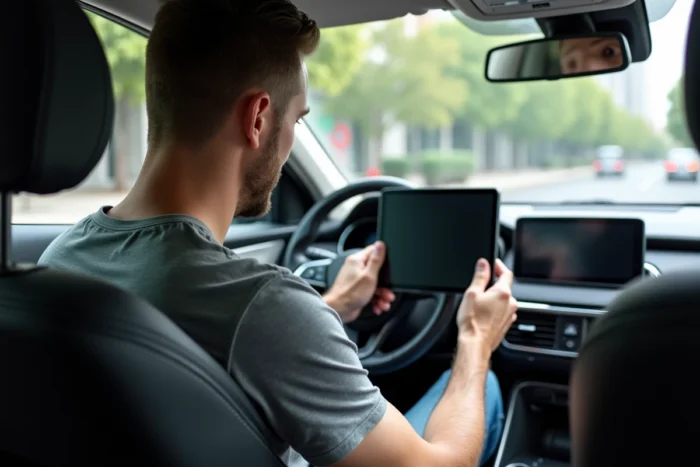
Google removed the Android Auto app for phone and tablet screens in 2022. The built-in “driving” mode in Google Maps has taken over, but it does not replicate the full interface that Android Auto offered on a secondary screen. For drivers whose vehicles do not have a compatible infotainment system, an Android tablet mounted on the dashboard remains a practical option.
Headunit Reloaded: the technical pivot to emulate Android Auto on tablet
The disappearance of the native Android Auto app on tablets has made a third-party app almost mandatory: Headunit Reloaded Emulator. This software transforms an Android tablet into a receiver that displays the Android Auto interface projected from a connected smartphone.
The principle is based on a client-server operation. The smartphone remains the brain: it runs Android Auto, manages navigation, music, and calls. The tablet simply displays the interface and relays touch commands.
The connection can be wired (USB cable) or wireless (Wi-Fi Direct), but the two methods do not offer the same stability. Wired, the latency is low and the connection reliable. You need to enable developer mode on the smartphone, then allow USB debugging.
In wireless mode, the setup requires both devices to share the same network or for Wi-Fi Direct to function properly, which heavily depends on the tablet model and the version of Android installed.
Several users report random disconnections in wireless mode, especially on older tablets whose Wi-Fi module lacks power. A detailed guide explains how to install Android Auto or CarPlay on an Android tablet covering the specific steps for each hardware configuration.

CarPlay on Android tablet: possible but shaky emulation
CarPlay is an Apple protocol designed to work exclusively with an iPhone connected to a certified infotainment system. Running CarPlay on an Android tablet is a software workaround, not official compatibility.
Apps like AutoKit or certain USB-C dongles promise to project the CarPlay interface onto an Android screen. The dongle connects to the tablet, the iPhone connects to it via cable or Bluetooth, and a software layer displays the CarPlay interface. In practice, the quality depends entirely on the dongle used. The cheaper models suffer from audio latency, poorly managed resolutions, and frequent crashes.
Apple provides no support for these solutions. Any iOS update can break the dongle’s compatibility overnight. The available data does not allow for concluding that a CarPlay solution on an Android tablet offers reliability comparable to a factory-integrated system.
Dashboard mounting and French regulatory framework
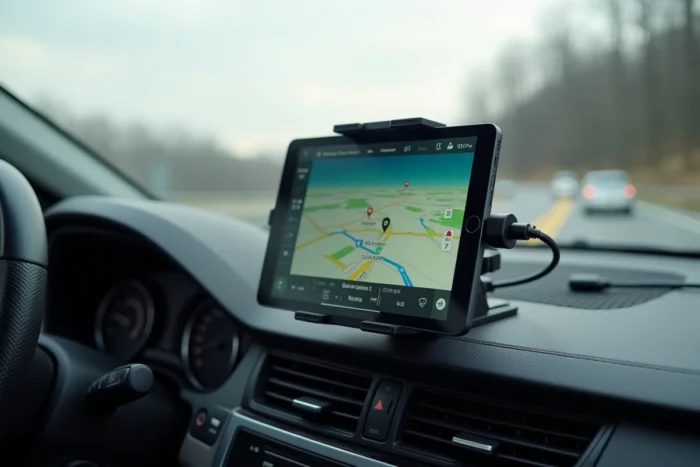
Transforming a tablet into a car screen requires proper mounting. A suction cup mount on the windshield or a claw mount on the air vents are the two common options. The choice has direct consequences on safety and regulatory compliance.
In France, no text explicitly prohibits a tablet mounted on the dashboard. However, road safety recommendations emphasize the driver’s responsibility when a non-certified device distracts attention.
A screen positioned too low forces the driver to take their eyes off the road for longer. A screen that is too large in the central field of vision can be considered an entertainment device, which exposes the driver to fines. The ideal position places the tablet at eye level, slightly shifted towards the center of the dashboard.
- Windshield suction cup mount: easy to install, but prohibited in some European countries if it obstructs the field of vision. In France, it remains tolerated as long as it does not hinder visibility.
- Air vent mount: more discreet and better visually integrated, but does not support heavy tablets well. Best reserved for compact models.
- Dashboard mount with adhesive: stable and positioned low, it limits obstruction of the field of vision. Ensure that the adhesive withstands summer temperatures in the cabin.
Audio and GPS connection: the two weak links of the tablet in the car
Displaying the interface is not enough. You also need to route the sound to the vehicle’s speakers and ensure that the GPS works correctly.
For audio, there are three methods: the vehicle’s Bluetooth, an auxiliary cable with a 3.5 mm jack, or an FM transmitter. Bluetooth remains the cleanest solution, but simultaneously connecting the smartphone and the tablet to the audio system creates conflicts.
The smartphone projects Android Auto onto the tablet, but it also manages the audio source. If the tablet tries to take control of the Bluetooth stream, the sound cuts out or switches to the wrong device.
The most reliable solution is to let the smartphone manage the audio Bluetooth to the car and use the tablet only as a touchscreen. The auxiliary cable between the tablet and the car radio also works, provided the smartphone’s audio Bluetooth is disabled.
Regarding GPS, most Wi-Fi tablets (without a cellular module) do not include a GPS chip. They geolocate via Wi-Fi or through the connected smartphone. In rural areas, without ambient Wi-Fi, the location becomes inaccurate or nonexistent. Only tablets with a 4G/5G module have reliable built-in GPS. This is a selection criterion to check before any purchase.
For a vehicle lacking a modern infotainment system, the Android tablet remains the most accessible compromise. The final result depends on the chosen hardware, the quality of the mount, and especially the patience invested in the initial setup. None of these solutions replace a factory-integrated system in terms of stability, but for a limited budget, the functionality-price ratio remains hard to beat.